The most annoying local AI failure is the one that looks successful. The workflow runs, Ollama answers, and the bill is zero. Then you notice that a small request takes 40 seconds because the model never reached the GPU, or that n8n is trying to call localhost from inside a different container.
n8n and Ollama make a useful private automation pair. n8n handles triggers, credentials, branching, and tool calls. Ollama provides a local HTTP model endpoint. The catch is that Docker gives each service its own view of the network. A setup copied from a laptop tutorial can therefore fail in three different ways: the names point at the wrong machine, inference falls back to CPU, or execution data quietly eats the disk.
This is the setup I would use for a small home server or a development VPS. It keeps the two services on one Docker network, gives their data persistent volumes, and adds checks you can run before blaming the model.
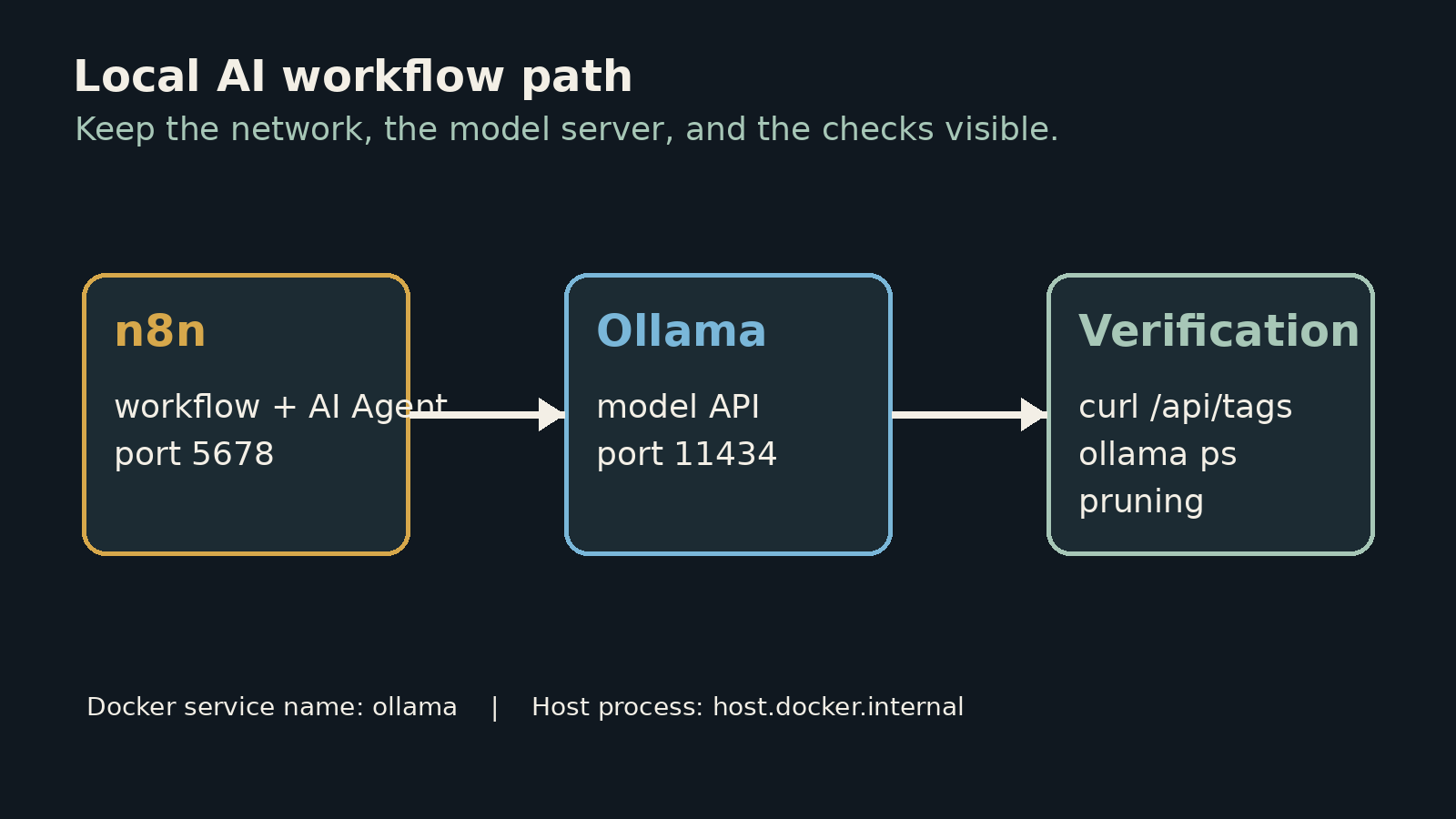
The setup that works
Start with a directory and a Compose file. The important detail is the service name. Inside the Compose network, n8n should call http://ollama:11434, not http://localhost:11434. localhost means the n8n container itself. The name ollama resolves to the Ollama container.
services:
  ollama:
    image: ollama/ollama:latest
    container_name: ollama
    ports:
      - "11434:11434"
    volumes:
      - ollama_data:/root/.ollama
    # Remove this block if the host has no Nvidia GPU.
    deploy:
      resources:
        reservations:
          devices:
            - driver: nvidia
              count: all
              capabilities: [gpu]

  n8n:
    image: docker.n8n.io/n8nio/n8n:stable
    container_name: n8n
    ports:
      - "5678:5678"
    environment:
      - GENERIC_TIMEZONE=Asia/Makassar
      - TZ=Asia/Makassar
      - N8N_ENFORCE_SETTINGS_FILE_PERMISSIONS=true
      - N8N_ENCRYPTION_KEY=${N8N_ENCRYPTION_KEY}
      - EXECUTIONS_DATA_PRUNE=true
      - EXECUTIONS_DATA_MAX_AGE=168
      - EXECUTIONS_DATA_PRUNE_MAX_COUNT=50000
      - EXECUTIONS_DATA_SAVE_ON_SUCCESS=none
      - EXECUTIONS_DATA_SAVE_ON_ERROR=all
      - N8N_DEFAULT_BINARY_DATA_MODE=filesystem
    volumes:
      - n8n_data:/home/node/.n8n
    depends_on:
      - ollama

volumes:
  ollama_data:
  n8n_data:
Create a .env file beside it and generate the encryption key before making credentials in n8n:
printf 'N8N_ENCRYPTION_KEY=%s\n' "$(openssl rand -hex 32)" > .env
docker compose up -d
The official n8n Docker instructions expose the editor on port 5678 and persist /home/node/.n8n. The official Ollama Docker image exposes 11434, stores models under /root/.ollama, and documents --gpus=all for Nvidia hosts. Compose's device reservation expresses the same intent without mixing the model server into the n8n container.
For a CPU-only machine, remove the GPU reservation. Do not pretend the same model will feel fast. A local workflow can still be useful for short classification, extraction, and routing jobs, but a large chat model may turn every automation into a queue.
Open http://your-server:5678, create the Ollama credential or HTTP connection used by your n8n version, and set its base URL to http://ollama:11434. Pull a model from the Ollama container:
docker exec -it ollama ollama pull qwen2.5:7b
docker exec -it ollama ollama run qwen2.5:7b
In the n8n editor, connect a chat model to the AI Agent node and attach at least one tool. n8n's current documentation says the AI Agent node requires a chat model and one or more tools. For a first test, use a simple HTTP Request or calculator-style tool rather than giving an agent access to email or shell commands. Prove the network path first, then add permissions.
What breaks first
The wrong host. If Ollama runs on the host and n8n runs in Docker, http://localhost:11434 still points inside the n8n container. On Docker Desktop, host.docker.internal usually reaches the host. On Linux, a host gateway mapping or a shared Docker network is less surprising. If both services are in the Compose file above, use http://ollama:11434 and stop changing the URL.
Test from inside n8n's container, not from your laptop:
docker exec n8n node -e "fetch('http://ollama:11434/api/tags').then(r=>r.text()).then(console.log).catch(console.error)"
A JSON response means DNS, routing, and the port are working. It says nothing about GPU use yet.
The hidden CPU fallback. On an Nvidia host, first check the host with nvidia-smi. Then check the Ollama container while a model is loaded:
docker exec ollama ollama ps
Read the processor column. If it reports CPU when you expected GPU, inspect the NVIDIA Container Toolkit, the Docker runtime, and the Compose device reservation. The model API can remain perfectly reachable while the accelerator is unavailable. That is why a green n8n execution is not a performance check.
The disappearing model after a restart. Without ollama_data, every container replacement can leave you downloading models again. Without n8n_data, you risk losing workflows, credentials, and instance data. Back up both volumes before experimenting with image upgrades. Keep the .env file out of Git, and do not expose port 11434 to the public internet unless you have put authentication and network controls in front of it.
The memory spike from files. n8n says binary data stays in memory by default, which can crash a small instance when a workflow processes large documents or images. The Compose file switches it to filesystem. n8n's docs also note that filesystem mode is not supported with queue mode, so change that setting if you later move to Redis-backed workers.
The database that grows while nobody watches. n8n documents a default pruning window of 336 hours / 10,000 executions: 336 hours, or 14 days, and a default ceiling of 10,000 finished executions. The example keeps only seven days and raises the count ceiling because the age limit is easier to reason about for a busy test server. Saving successful execution payloads as none also stops a pile of routine outputs from becoming your debugging archive. Keep errors. They are the records you will actually need.
You can inspect the result with:
docker compose logs --tail=100 n8n
docker compose logs --tail=100 ollama
docker system df
docker exec ollama ollama list
If n8n reports a connection error, test /api/tags from the n8n container. If the request succeeds but the agent is slow, test ollama ps. If both are healthy and the server is filling up, inspect execution retention and the two named volumes. Each command isolates one layer. That beats changing five settings and hoping.
The decision I would make
Use this pair when your workflow handles private text, the requests are small enough for your hardware, and you are comfortable maintaining Docker volumes and updates. It is a good fit for document routing, local summaries, tagging, and internal prototypes. Keep a cloud model as an explicit fallback when a task needs a long context window or reliable tool calling that your local model cannot provide.
Do not deploy this stack as an anonymous public endpoint. n8n stores credentials and workflow data. Ollama's local endpoint is designed for local access, not an internet-facing API. Put n8n behind HTTPS and authentication, bind Ollama to the private network, and give agents the smallest tool set that can complete the job.
The useful habit is simple: verify the path before tuning the prompt. http://ollama:11434 proves the containers can talk. /api/tags proves the API responds. ollama ps tells you where inference runs. Pruning and binary-data settings decide whether the instance remains usable next month. Those checks turn a fragile demo into a setup you can leave running.
Sources
- n8n Docker installation documentation: ports, persistent volumes, stable image, and self-hosting requirements
- n8n AI Agent node documentation: model and tool connection requirements
- n8n execution data documentation: pruning defaults and saved execution controls
- n8n binary data documentation: filesystem mode and queue-mode limitation
- Ollama official Docker image guide: port 11434, persistent model storage, and Nvidia Docker mode