Local AI agents are good at writing code. They are much less useful when the code needs a GPU, a pile of Python packages, or a notebook another person can inspect later. That is the narrow problem Google's Colab MCP server solves. Your agent stays on your machine, while the notebook and its runtime live in Google Colab.
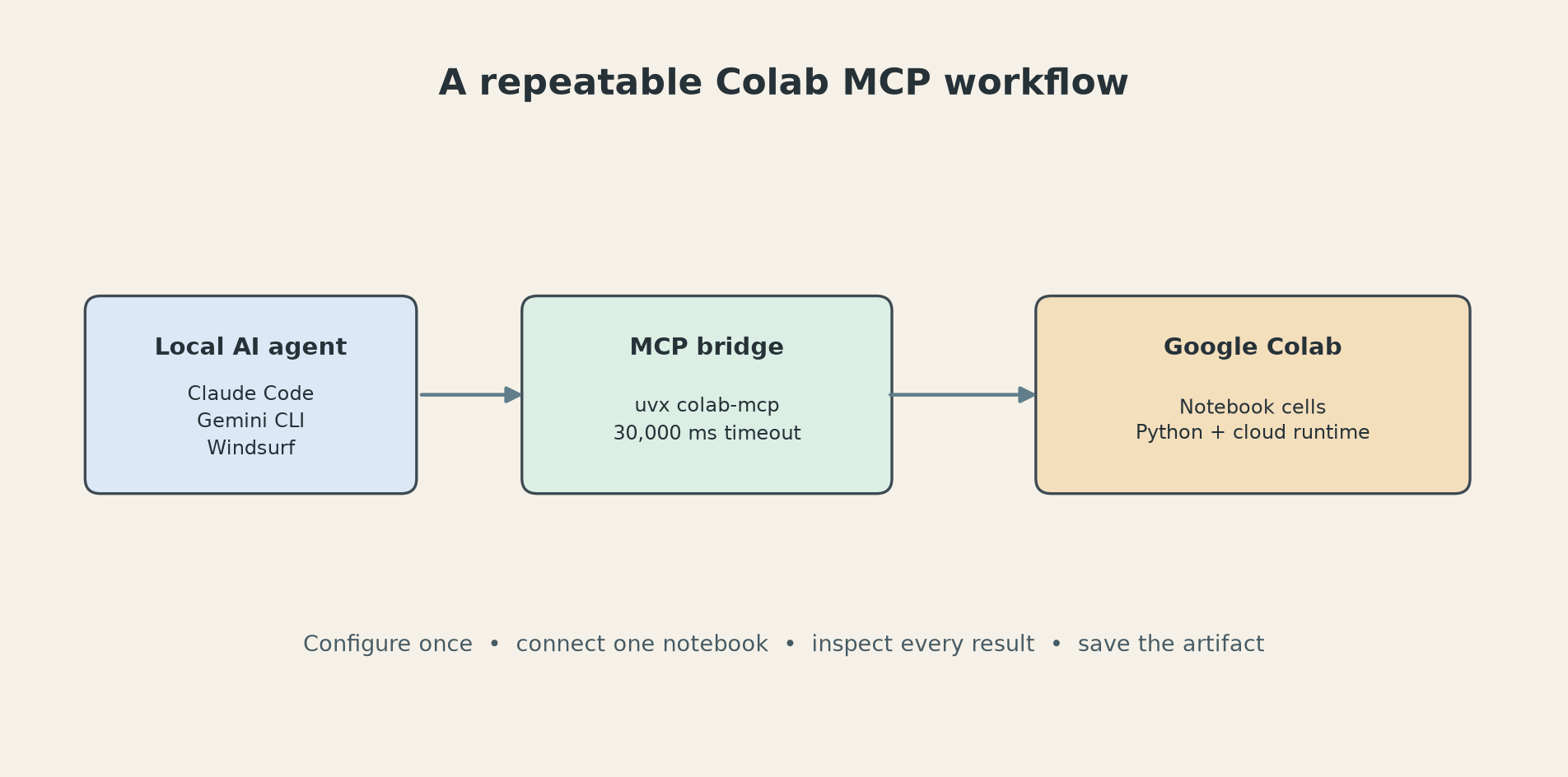
The useful version of this setup is not "ask an agent to do data science." It is a repeatable handoff: connect one notebook, let the agent add and run cells, inspect the outputs, then keep the notebook as the artifact. The annoying version is a browser tab that says the server is disconnected while the local process appears perfectly healthy.
The setup that actually works
Google's own instructions list three prerequisites: Python, git, and uv. The repository currently requires Python 3.13 or newer in its project metadata, so check that before blaming MCP. The install step is deliberately small:
pip install uv
The official repository lists three popular compatible clients: Gemini CLI, Claude Code, and Windsurf. The important detail is that the MCP client must run locally and support notifications/tools/list_changed. A web-only chat window cannot reach a server listening on your laptop.
For a client that accepts an mcp.json style configuration, add this entry:
{
  "mcpServers": {
    "colab-mcp": {
      "command": "uvx",
      "args": ["git+https://github.com/googlecolab/colab-mcp"],
      "timeout": 30000
    }
  }
}
That 30000 is milliseconds, not seconds. It gives the browser connection step thirty seconds to complete. Restart the client after saving the file. Do not start a second copy of the server in a terminal just to see whether it launches. That test can create the exact problem that makes the later browser connection fail.
The first-run sequence is simple but the order matters:
- Open a Google Colab notebook in your browser.
- Ask the local agent to call
open_colab_browser_connection. - Click the connection control in the notebook when Colab shows it.
- Wait for the notebook tools to appear in the client.
- Ask for a small test cell before handing over a real dataset.
Use a test that leaves evidence in the notebook. For example:
Create a new code cell that prints the Python version, imports pandas, and reports the shape of a tiny in-memory dataframe. Run it, then read the output back to me. Do not continue if the cell result is missing.
That last sentence matters. An agent that can add a cell but cannot read its output is only a code generator with extra ceremony. The official protocol supports dynamic tool discovery through notifications/tools/list_changed, and the Colab MCP README calls out that requirement. Some clients refresh the list immediately. Others need a second tool-list request or a client restart.
Before: You copy a generated block from a local chat into Colab, install packages by hand, and lose the reasoning that produced the chart.
After: The agent writes markdown and code cells, executes them in the connected notebook, reads errors, and leaves a shareable .ipynb with the work visible.
What broke in testing: A successful server process did not prove that the browser tab was connected. The bridge is a local process, while the notebook is a browser endpoint. Both have to agree on the token and port embedded in the connection URL.
What I learned: Treat the first cell as a health check. If the agent cannot execute it and read its output, stop there. Do not feed it a twelve-step analysis and hope the connection sorts itself out halfway through.
A workflow worth keeping
The best use case is a task where local setup is the bottleneck, not the analysis itself. Give the agent a CSV, a clear output request, and rules for checking its own work. This prompt is a decent starting point:
Create a notebook called sales-review. Load the CSV from this URL. First inspect column names, missing values, and row count. Then make one monthly revenue chart and one table of the ten largest customers. After every code cell, read the result and fix errors before continuing. Keep a markdown note above each cell explaining what it tests. Save the final notebook with the chart and a short limitations note.
This produces a useful artifact because the notebook records the method, not only the answer. It also gives the agent several opportunities to catch a bad URL, a date column that parsed as text, or a total that does not reconcile. Colab's official announcement says the server can add and structure cells, write and execute code, move cells, and install dependencies. Those are workflow primitives. The quality still comes from how tightly you specify the checks.
Keep secrets out of the prompt. Use a public sample first, then add Drive or another controlled input only after the connection works. Colab runtimes are disposable. Google's FAQ says free notebooks can run for at most twelve hours, with availability and usage patterns affecting the actual limit. It also says GPU availability and other usage limits are dynamic rather than guaranteed. Save intermediate outputs to Drive or download the notebook before ending a session.
Before: The agent is asked to "analyze this data" and produces a pretty chart that nobody can reproduce.
After: The prompt demands a named notebook, input checks, one result readback after each cell, a limitations note, and a saved artifact.
What broke: Installing a package in one runtime does not make it permanent. A new runtime can start with a clean environment, so the notebook should keep dependency installation near the top and record the package versions when the result matters.
What I learned: A notebook is a better boundary than a chat transcript. It gives you cells to review, outputs to challenge, and a file you can hand to someone who was not present for the original prompt.
When the connection breaks
The most useful troubleshooting evidence is in the project's own discussions. Users reported the browser showing "Disconnected from the local Colab MCP server" even though uvx appeared to be running. The maintainer discussion points to the cause: each server instance binds to a random ephemeral port, and the browser tab remembers the port from the URL fragment. If the original process dies and a new process starts, the tab can keep calling the dead port.
Start with the boring fix. Close extra client sessions and Colab tabs. Check for more than one colab-mcp process. Stop the orphaned process, restart the client once, open one fresh notebook, and connect again. Do not keep clicking Connect across several tabs. That makes it harder to tell which browser tab owns the live token.
If the browser opens but the agent never sees notebook tools, inspect two things:
- Does the URL contain the connection fragment with
mcpProxyTokenandmcpProxyPort? - Did the client refresh its tool list after the connection?
The project's discussion history also documents a dynamic-registration gap. One community fork pre-registered five tools because some clients did not refresh after notifications/tools/list_changed; another commenter noted that the visible list still did not include every notebook operation. That is a warning against assuming that a green connection message means every operation is available.
If you need an existing notebook, expect an extra handoff. The official discussion advice is to connect the fresh notebook first, then use Colab's File > Open Notebook flow in that connected tab. The connection belongs to the browser tab and runtime, not magically to every tab open under your Google account. The same discussion records account-selection friction, so check that the browser is signed into the account that owns the notebook and any required compute access.
Before: You retry the same prompt, open more tabs, and eventually have three local servers fighting over stale browser URLs.
After: You reduce the system to one client, one server process, one connected tab, and one tiny health-check cell. Only then do you resume the real task.
What broke: Colab MCP is open source and still has rough edges. The repository's setup is clear, but client support for dynamic tool discovery and browser reconnection is uneven. The project's discussions are not marketing copy; they are a useful list of failure modes.
What I learned: The integration is worth trying when local compute or dependency setup is the pain. It is a poor choice for unattended production jobs, guaranteed GPU allocation, or work that cannot tolerate a disposable runtime. For those tasks, use a managed job system or a runtime you control.
The decision is pretty narrow. If you want a local agent to produce an inspectable notebook without asking your laptop to host every dependency, Colab MCP is a practical bridge. Install it once, prove the connection with one small cell, keep only one server alive, and save the notebook as you go. That procedure avoids most of the drama. The remaining failures are a reminder that a browser tab is part of the system, not just a window into it.
Sources
- Google Developers Colab MCP announcement: official setup steps and notebook operations
- Google Colab MCP repository: supported clients,
uvxconfiguration, and protocol requirements - Colab MCP README: current project metadata and 30000 millisecond client timeout
- Colab MCP connection issues discussion: existing-notebook and duplicate-process reports
- Colab MCP disconnected-server discussion: stale ports, browser fragments, and recovery details
- Google Colab FAQ: runtime limits, GPU availability, and disposable-session warnings