If you are searching for how to sandbox AI browser agents with Docker, start with an uncomfortable distinction: a container is a boundary, not a guarantee. A browser agent can read pages, follow links, download files, reuse cookies, and sometimes reach services you never meant to expose. The safe setup depends on what the agent is allowed to touch, not on whether the launch command contains the word docker.
I would use a layered setup for a personal browser worker. Put an untrusted or unattended agent in Docker Sandboxes, which gives it a microVM with its own Docker daemon, filesystem, and network. Use an ordinary container with a non-root browser user and a seccomp profile when the workload is controlled and you need a simpler, more portable deployment. Keep the human login step visible and separate from the agent's host access.
Pick the boundary
Before installing anything, answer one question: what happens if the agent follows malicious instructions on a page? If the answer is "it can read my home directory, inspect sibling containers, or use my personal browser profile," the boundary is too weak.
Docker's current Sandboxes documentation takes the stronger route. The sbx CLI starts an agent inside an isolated microVM. The sandbox gets its own Docker daemon, filesystem, and network, while the host working tree can be mounted or synchronized through the supported workflow. The agent can install packages and build containers inside that environment without automatically gaining access to the host's containers or files outside the workspace. Sandboxes persist after the agent exits, so you can stop one and resume it later. Remove it when you want the installed packages, in-sandbox images, and clone to disappear.
That is the right default for an unattended coding or browsing worker you do not fully trust. The command is intentionally boring:
cd ~/agent-workspace
sbx run claude
Then inspect the network policy before giving the agent a real task. Docker documents sbx policy ls for checking the active rules and sbx policy allow network registry.npmjs.org for adding a specific host. Treat allowlisting as part of the task definition. A scraper may need the target site and an artifact store. It probably does not need unrestricted access to every internal hostname.
A regular Docker container is still useful, but be precise about what it does. Containers share the host kernel. They reduce filesystem and process exposure, yet they are not the same isolation class as a microVM. For a single-user machine running a known browser workflow, that trade can be reasonable. For arbitrary pages, third-party extensions, or long-running agents with credentials, I would not pretend it is equivalent.
Run the browser safely
For a plain Playwright container, begin with the browser's own security requirements rather than copying a random privileged-mode command from a blog post. Microsoft's Playwright Docker guide says the image is intended for testing and development and warns against using it to visit untrusted websites without additional care. Its recommended crawling setup uses a separate pwuser account and a seccomp profile that allows the user-namespace operations Chromium needs.
The default Docker shared-memory area is 64 MB. That is a common reason Chromium crashes on pages with several tabs, large canvases, or heavy JavaScript. Playwright's example uses host IPC, and its general Docker guidance calls out a 1 GB shared-memory configuration as a safer starting point for browser workloads. I prefer making the resource choice explicit when the container is mine:
services:
  browser:
    image: mcr.microsoft.com/playwright:v1.62.0-noble
    init: true
    shm_size: 1g
    user: pwuser
    security_opt:
      - seccomp=seccomp_profile.json
    command: /bin/bash
Pin the image version to the version used by your project. Playwright warns that mismatched browser and package versions can prevent it from locating the browser executable. Do not add the SYS_ADMIN capability just to make a crash disappear. The official guide lists it as an option for some configurations, but a non-root user plus the seccomp profile is the more defensible pattern for crawling and scraping.
Inside the agent workflow, mount only a disposable workspace. Do not mount $HOME, /var/run/docker.sock, your SSH directory, or the browser profile you use for banking and email. If the agent needs an authenticated session, create a dedicated account or profile with the smallest useful permissions. A login cookie is a capability. Handle it like a secret, not like a convenience file.
The browser's control plane should be separate from the host's control plane. Playwright MCP can drive a browser through structured accessibility snapshots, and its official project supports isolated profiles, persistent user-data directories, or a CDP endpoint. Use an isolated profile for tests and disposable jobs. Use a persistent profile only when the workflow really requires continuity, and never point it at your daily browser data.
For a system that needs a person to complete a login or approve a sensitive step, OpenHands provides a useful reference design. Its DockerWorkspace runs the agent server inside a managed container, enables browser tools, and can expose extra ports for VSCode and VNC. The documented browser example makes the live desktop available through port 8012. The person handles the one step that needs a human, then the agent continues inside the workspace.
That handoff is safer than giving an agent your main Chrome profile, but it is not magic. Put the VNC or noVNC endpoint behind authentication, bind it to localhost or a private network, and close the port when the session is finished. A browser desktop with no password is remote control of the account inside it.
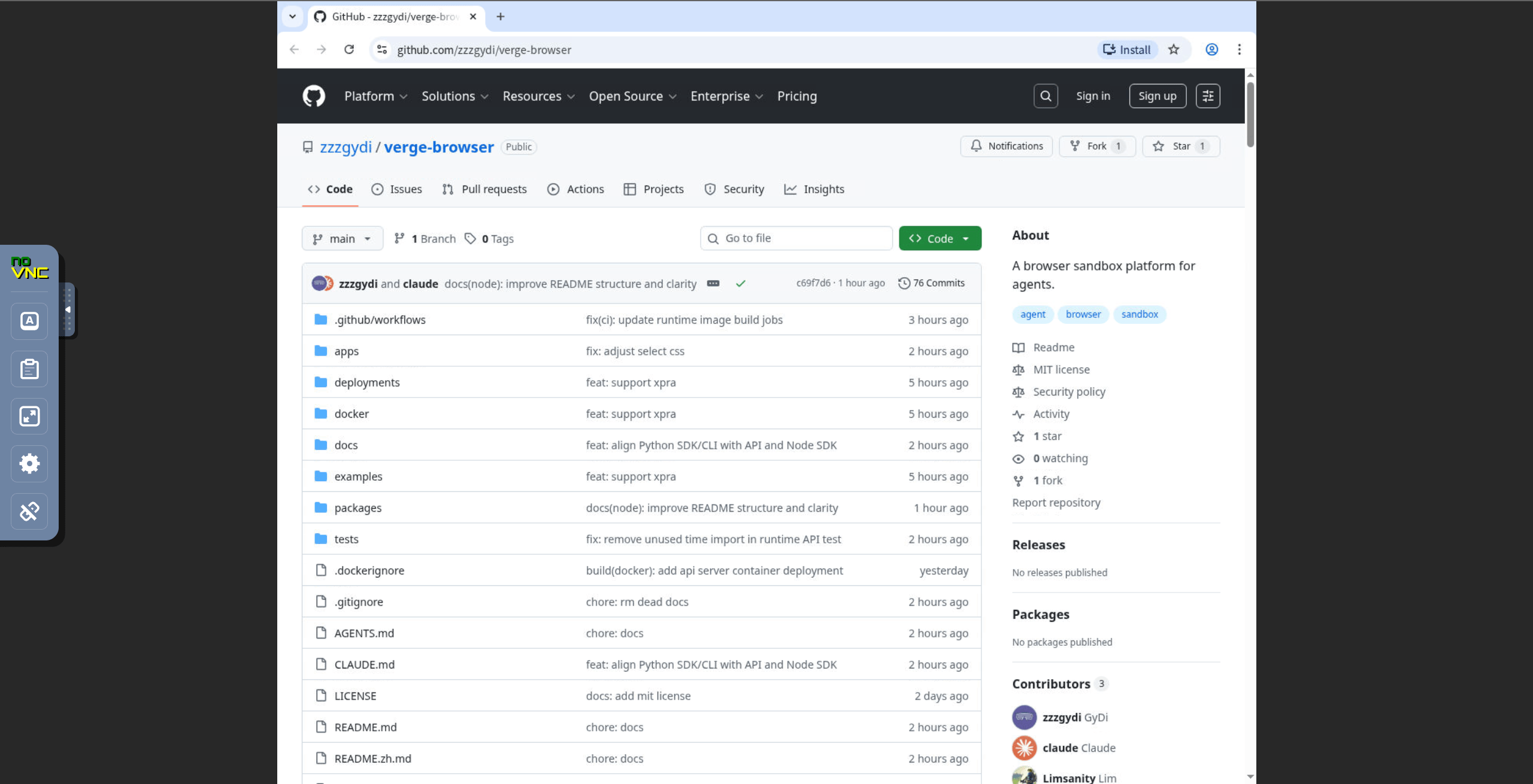
If you want a small, self-hosted browser runtime rather than a full agent SDK, Verge Browser demonstrates the same shape: a gateway, a runtime container with Chromium and a virtual display, a shared workspace, CDP access, and a human-facing session URL. Its README supports both an xvfb_vnc runtime and an xpra runtime. The former is a sensible automation-first choice when human checks are occasional. The latter is better suited to frequent interactive debugging. That is a useful choice, not a branding detail.
agent task -> browser runtime -> isolated workspace
                    |
                    +-> human handoff for login or approval
If you are building on an existing CDP workflow, the related browser automation through CDP article covers the capability layer. This article is about keeping that capability in a box.
When this breaks
Chromium exits on launch. Check shared memory first. A 64 MB default is not much for a modern browser. Increase it to 1 GB or use the documented IPC configuration, then confirm that the package and browser image versions match.
The browser works, but the agent cannot reach the site. Inspect the sandbox's network rules before weakening the boundary. With Docker Sandboxes, sbx policy ls tells you what is active. Add the exact hostname the task needs. For a regular container, check DNS, proxy settings, and whether an overly narrow egress policy is doing its job. A failed request is not proof that the policy should become 0.0.0.0/0.
The login works once and then disappears. You probably used an isolated or disposable profile. That is often correct. If the task genuinely needs persistence, give it a dedicated profile and store it in a volume that only this runtime can access. Do not solve the problem by mounting your personal profile.
The human handoff page is unreachable. Check the port mapping and whether the runtime exposes its VNC service. OpenHands' example uses extra ports and documents port 8012 for the browser view. Bind the port to a private interface first. If you put it on a public server, add TLS, authentication, and an access rule before sending the URL anywhere.
The agent asks for Docker access. Stop and reconsider the design. Mounting the host Docker socket gives a container a powerful path back to the host. Docker Sandboxes avoid that specific host coupling by giving the sandbox its own Docker daemon. If your regular container truly needs to build images, keep those builds inside a separate builder or use a microVM boundary instead of handing over /var/run/docker.sock.
The shortest safe recipe is therefore not a single command. Use a microVM for untrusted or unattended work. Use a non-root Chromium user, a seccomp profile, and at least 1 GB of shared memory for controlled Playwright jobs. Give the browser a disposable workspace and a dedicated login. Expose human handoff only through a private, authenticated route. Revoke and remove the runtime when the task ends.
That extra setup feels slow until the first agent follows a poisoned page into a credential directory. Then it feels like the cheap option.
Sources
- Docker Sandboxes overview: microVM isolation, separate filesystem and network, persistence, and the
sbxworkflow - Docker Sandboxes getting started: network policy inspection, allow rules, and cleanup commands
- Playwright Docker guide: 64 MB shared memory default, 1 GB browser guidance, non-root users, and seccomp configuration
- OpenHands Docker Sandbox: browser-enabled DockerWorkspace, managed containers, and VNC on extra ports
- OpenHands browser sandbox example: working SDK example with browser tools and remote workspace
- Verge Browser: self-hosted browser runtime with CDP, VNC/Xpra, workspace sharing, and human handoff
- Playwright MCP: structured browser control, isolated profiles, persistent profiles, and CDP connection support